Sandbox
Sandbox/Asset Management for active subscription
MBI Digital Asset is a blockchain-based platform that enables users to create, store, and manage digital assets in a secure, verifiable, and user-controlled manner.
Flexible Blockchain Support
The platform allows users to choose the blockchain network that best suits their operational and compliance needs.
Feature 1: Sandbox/Asset Management
The Sandbox serves as an innovation playground for experimentation, development, and proof-of-concept use cases.
Step 1: Access the Sandbox
- Log in to the MBI Digital Asset platform.
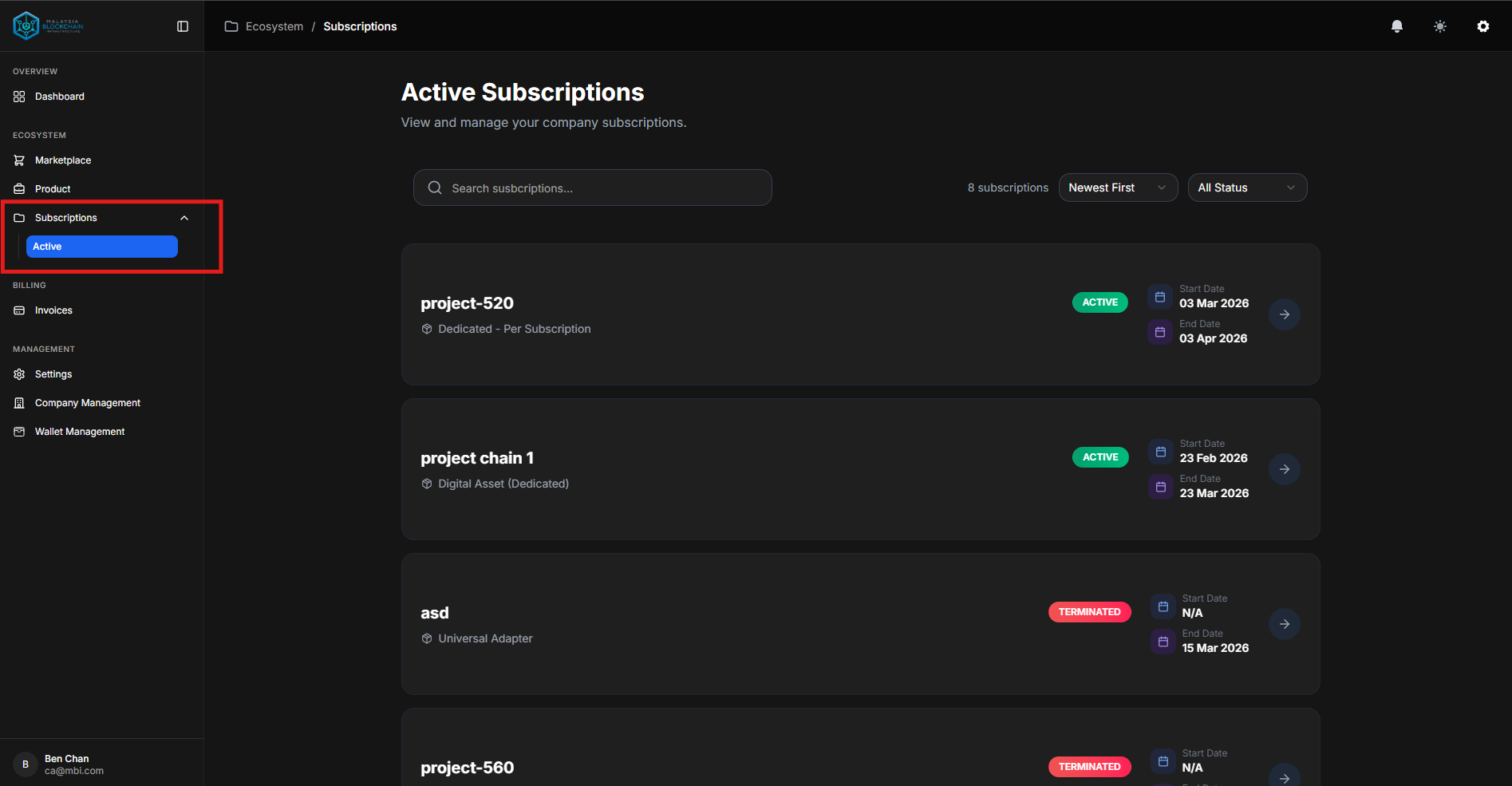
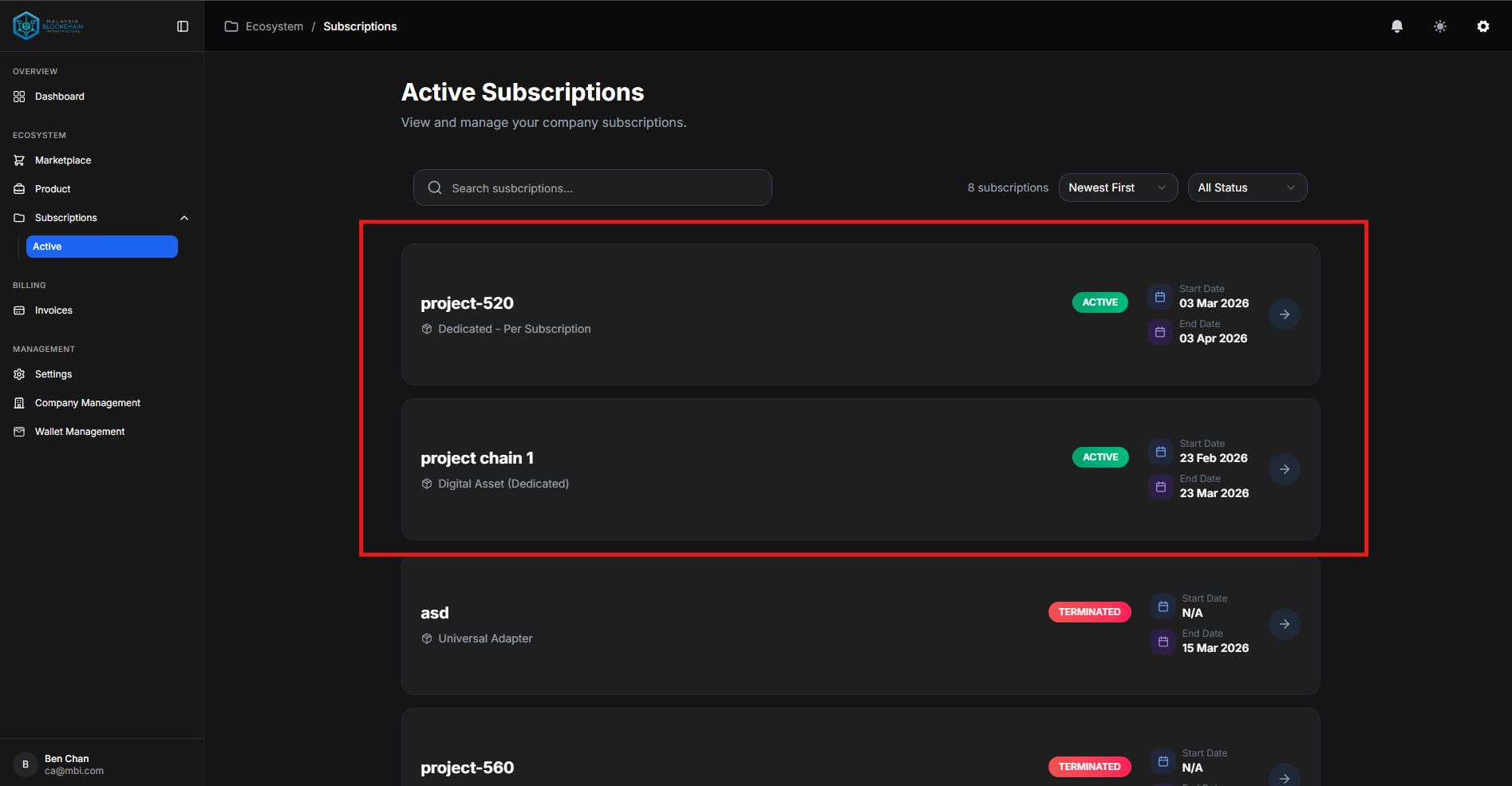
- Navigate to Subscription → Active.
- Select your active subscription.
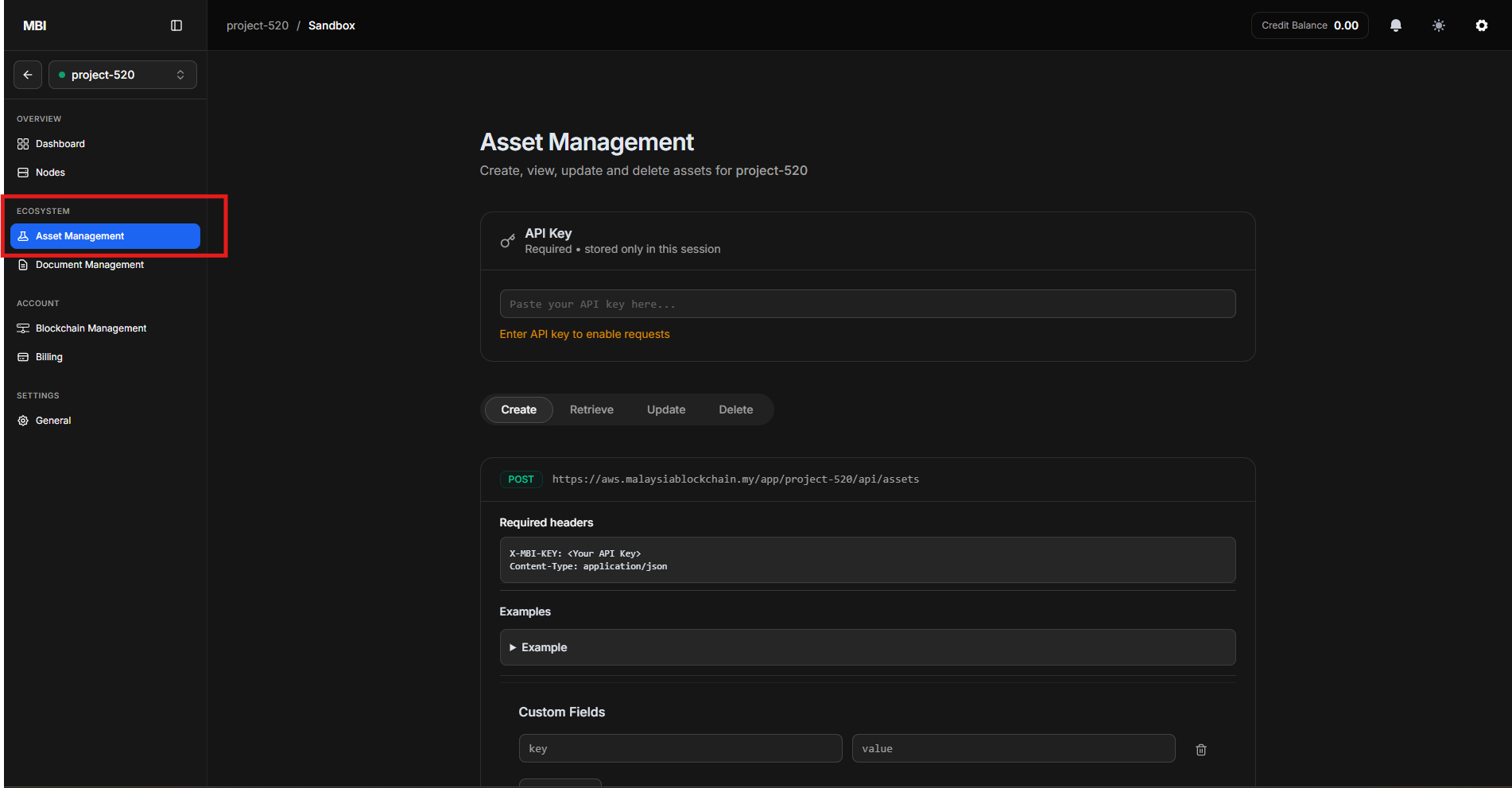
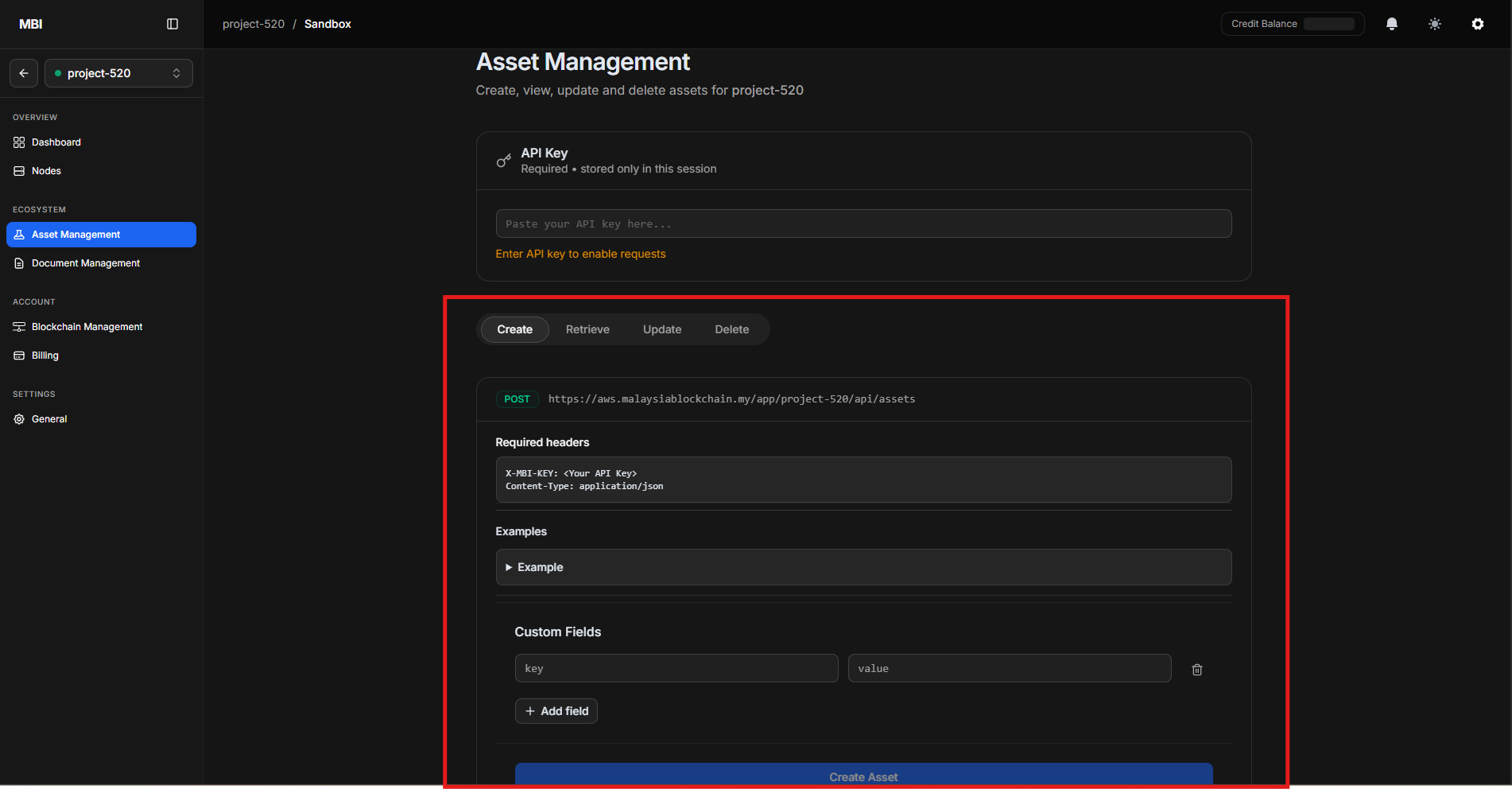
- Go to Ecosystem → Asset Management.
Step 2: Create Digital Assets
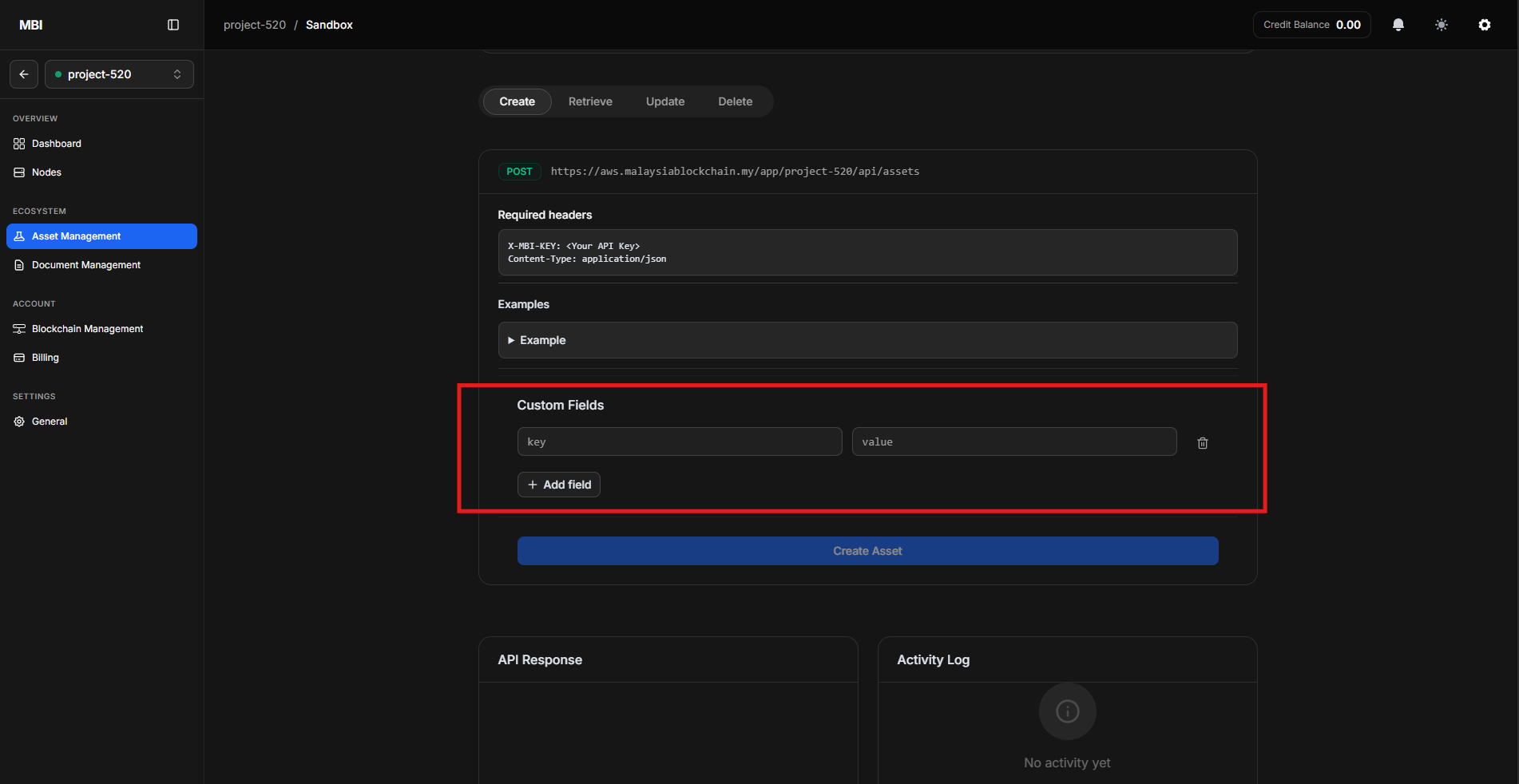
Create digital assets using a Field Name – Field Value structure.
Recommended to include:
- Certificate ID
- Owner Name
- Course Name
- Issued Date
- Issuer
- Status
Click Create Asset to store the digital asset securely on the blockchain.
Tip
The Sandbox is ideal for testing ideas, developing proof of concepts, or supporting real-world applications.
Note
Enter the API key regenerated under General → Regenerate API Key.
Step 3: Manage Digital Assets
Within the Sandbox, you can:
- View created digital assets
- Perform Create, Retrieve, Update, Delete (CRUD) operations
- Track all asset activities recorded on the blockchain
Feature 2: Document Management
The Document Management feature enables secure handling of important files with blockchain-backed integrity.
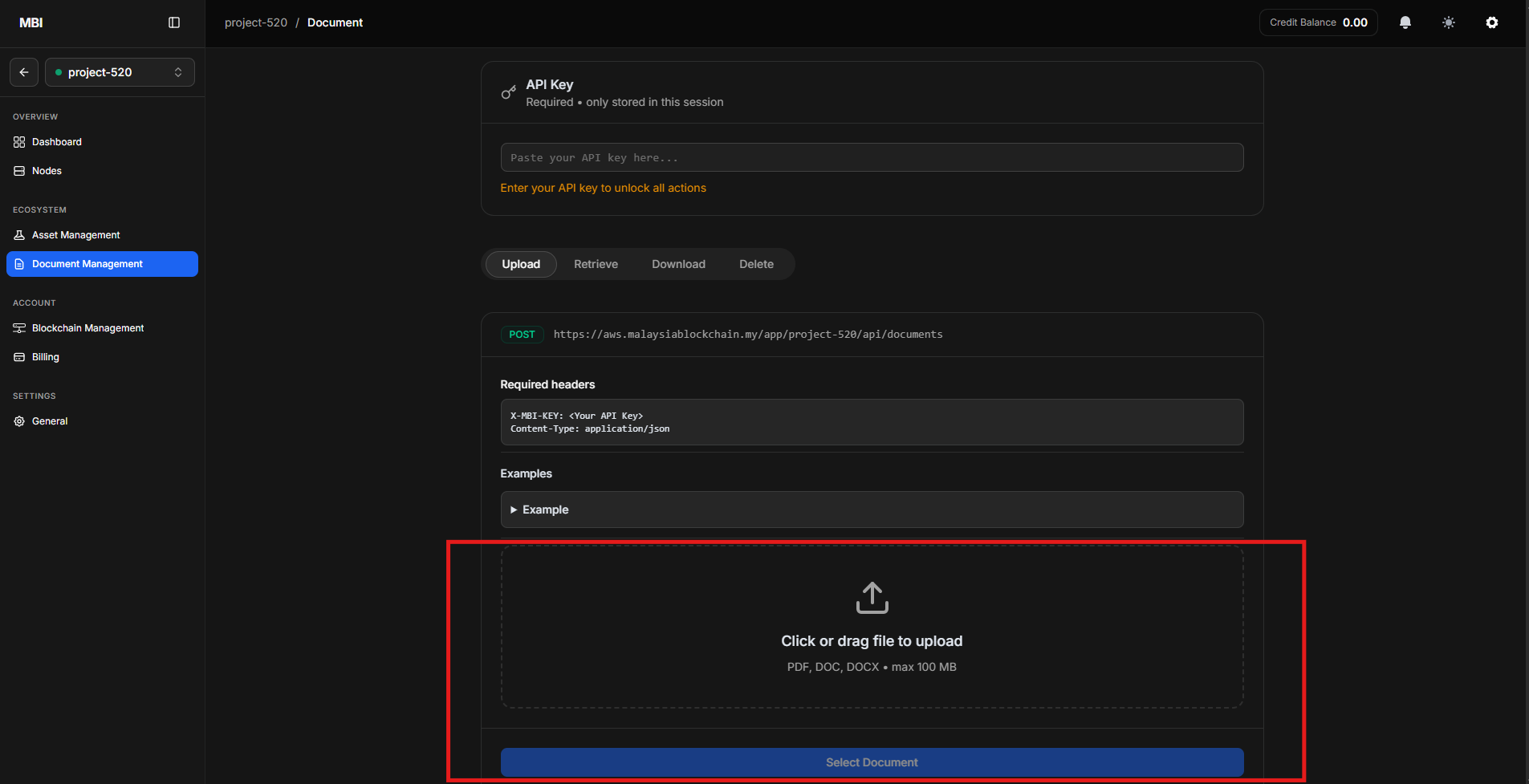
Step 4: Upload Documents
- Navigate to the Document section.
- Upload important documents to the platform.
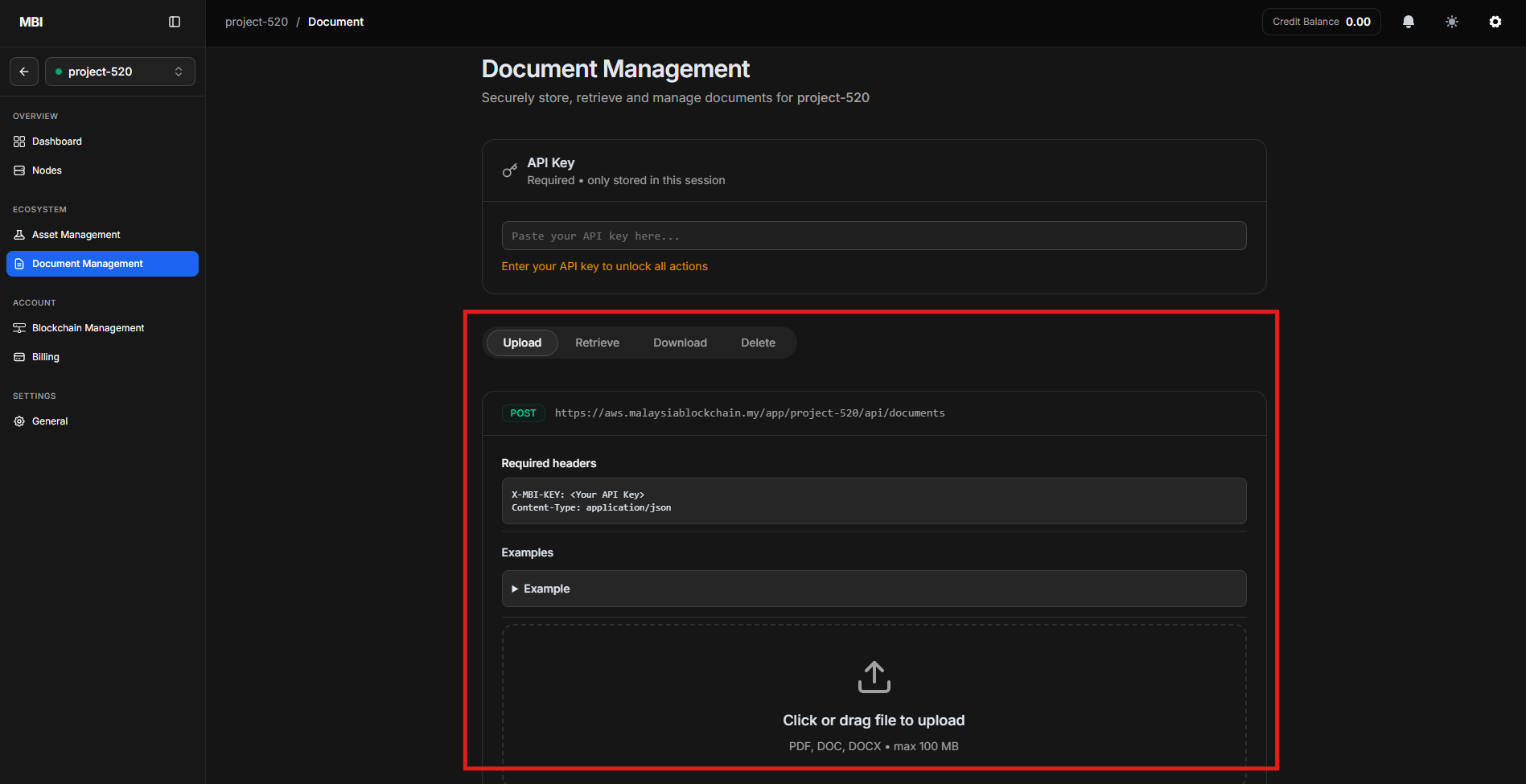
Step 5: Manage Documents
You can:
- View uploaded documents
- Download documents
- Delete documents that are no longer required
Feature 3: Blockchain Management
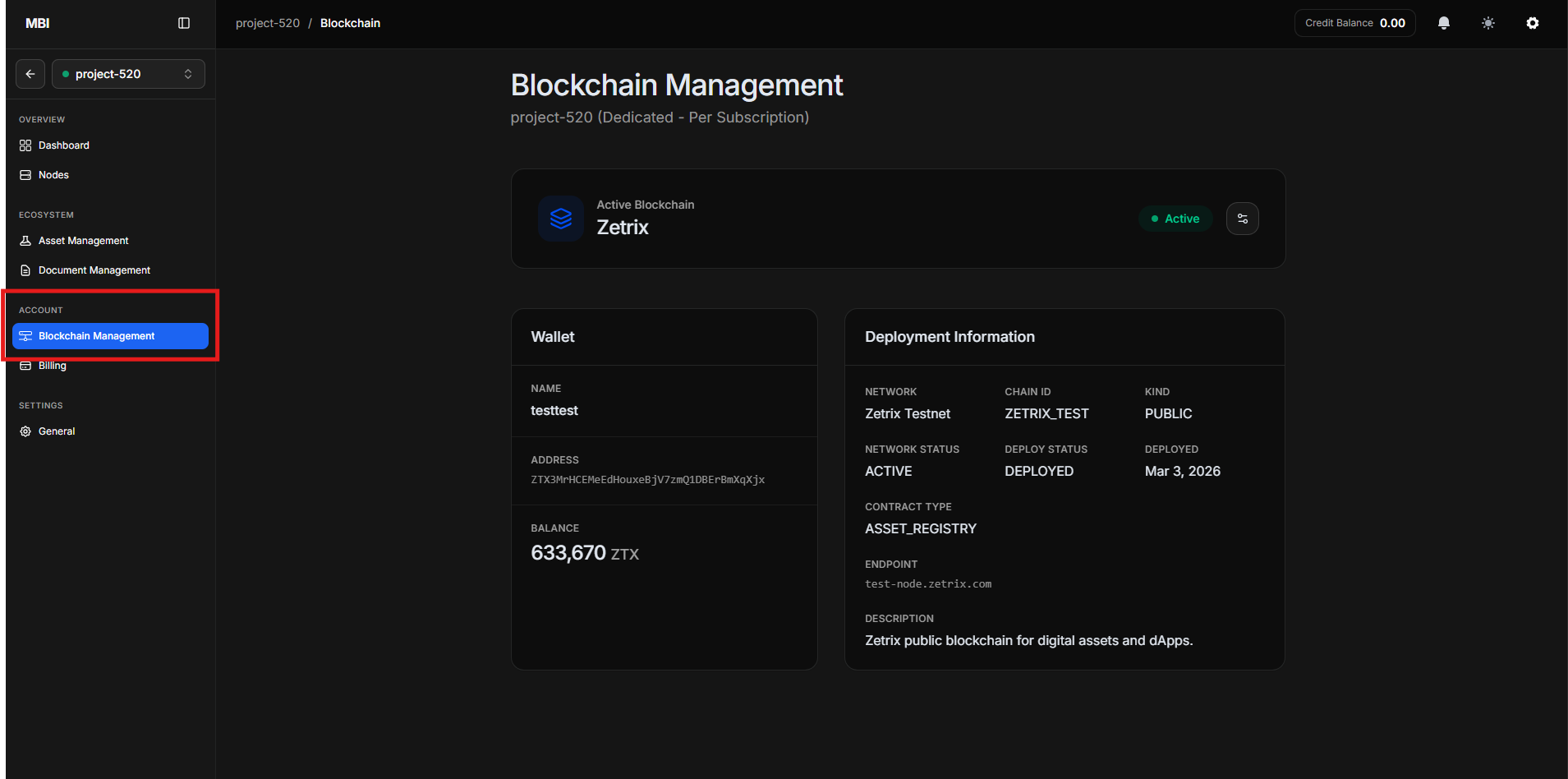
The Blockchain Management module allows users to view, configure, and manage all blockchain-related settings for the active subscription.
This includes network selection, wallet information, payment tracking, and deployment visibility.
3.1 Blockchain Exchange
The Blockchain Exchange section lets users change their:
- Network (e.g., Zetrix Testnet, Fabric, etc.)
- Wallet associated with the subscription
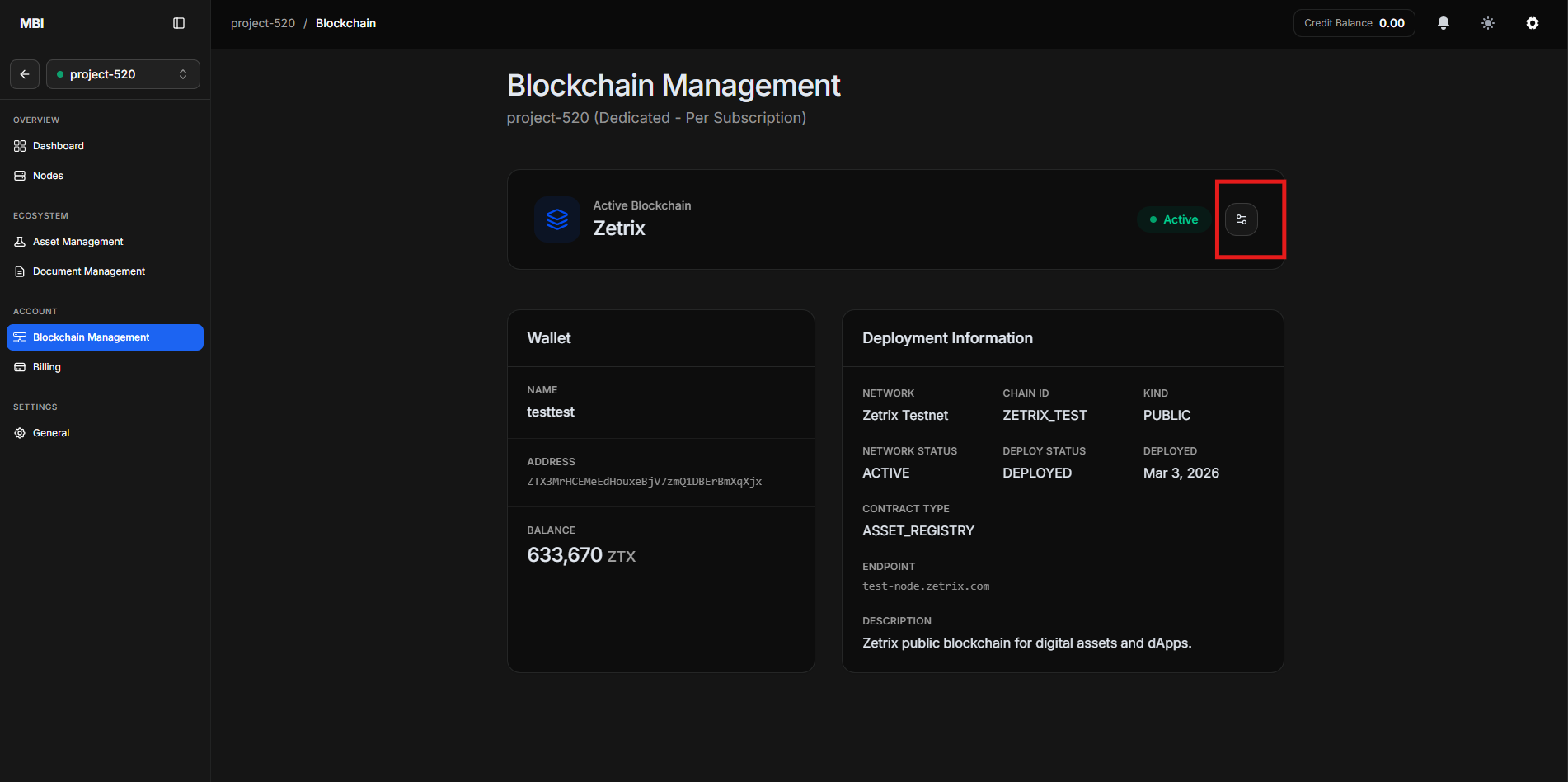
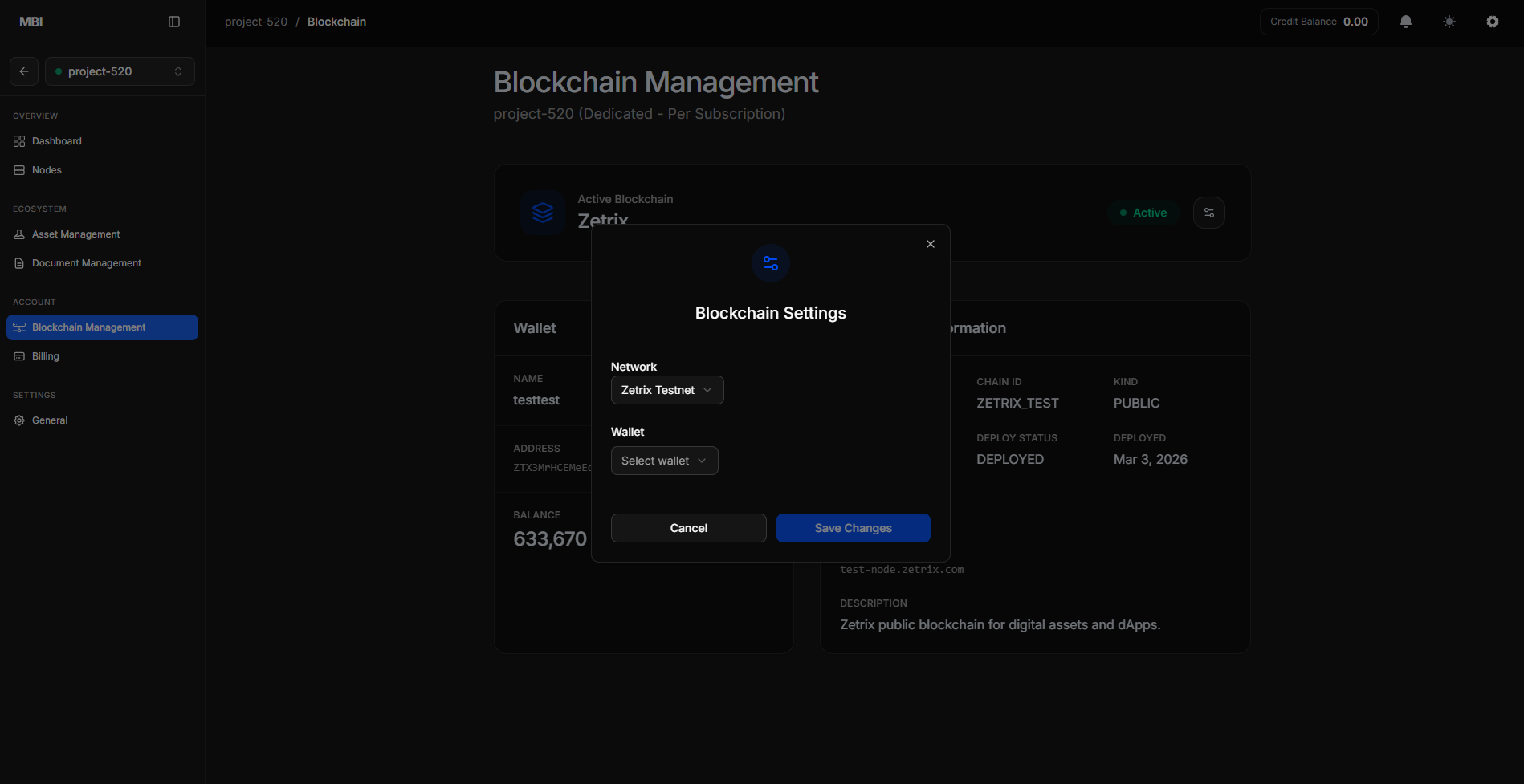
Click icon Setting to open the Blockchain Settings dialog.
Users can modify:
- Network → Select the preferred blockchain network
- Wallet → Choose a wallet linked to that blockchain
Click Save Changes to update the configuration.
Warning
Changing network or wallet will affect how assets and transactions are stored. Review carefully before confirming.
3.2 Payment Due
This section displays:
- Remaining days until the next renewal
- Payment progress and upcoming billing cycle
A countdown indicator helps users track when action is required to maintain service continuity.
3.3 Wallet Details
This section provides wallet‑related information tied to the subscription:
- Wallet Name
- Wallet Address
- Wallet Balance
This helps users verify that deployments and transactions are being executed with the correct linked wallet.
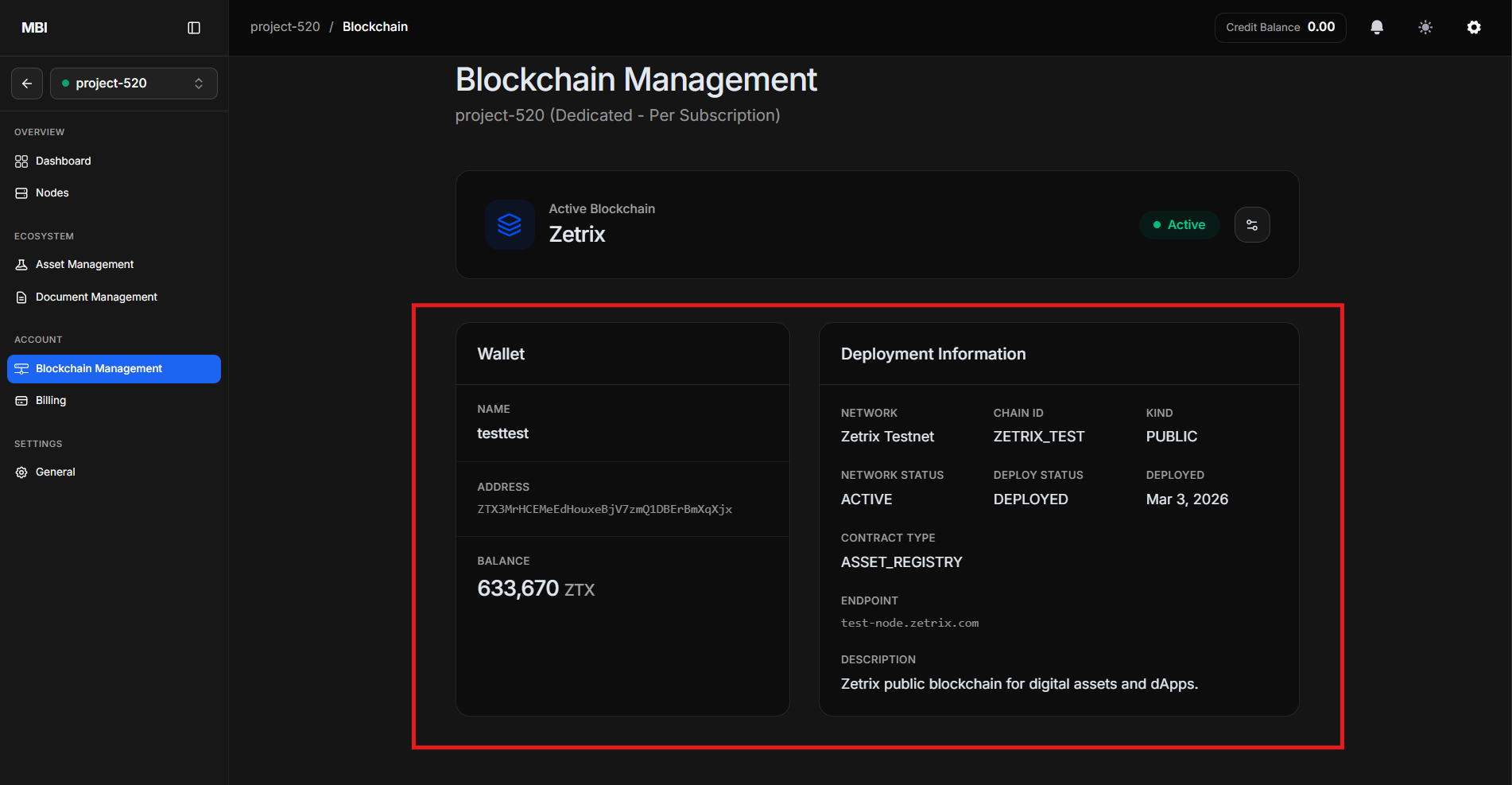
3.4 Deployment Details
Users can view deployment and environment details such as:
- Network (e.g., Zetrix Testnet)
- Chain ID
- Blockchain Kind
- Network Status
- Deploy Status
- Expiration Date
- Contract Type
- Endpoint URL
- Description
These settings are read‑only and reflect the blockchain infrastructure used by the subscription.
Completion
You can now use MBI Digital Asset to:
- Create blockchain-based digital assets
- Manage documents securely
- Configure blockchain settings
- Review wallet and deployment details
- Integrate with existing systems confidently